SOP Library Concept bake-off 5 directions · pick one

Five ways to build the SOP Library.

Same content, same design language — Bricolage Grotesque / Instrument Sans / IBM Plex Mono, with chartreuse #dcfb4c reserved strictly for the active topic and search highlighting. What changes is the information architecture: five genuinely different ways to find and read a procedure. Every one is fully clickable — browse, open an SOP, add/edit, and flip Admin mode on and off.

10 SOPs · 4 topics · 4 filmed, 6 written-only Verified: 1440px + 390px · no console errors
Editorial Index
01 Refined baseline

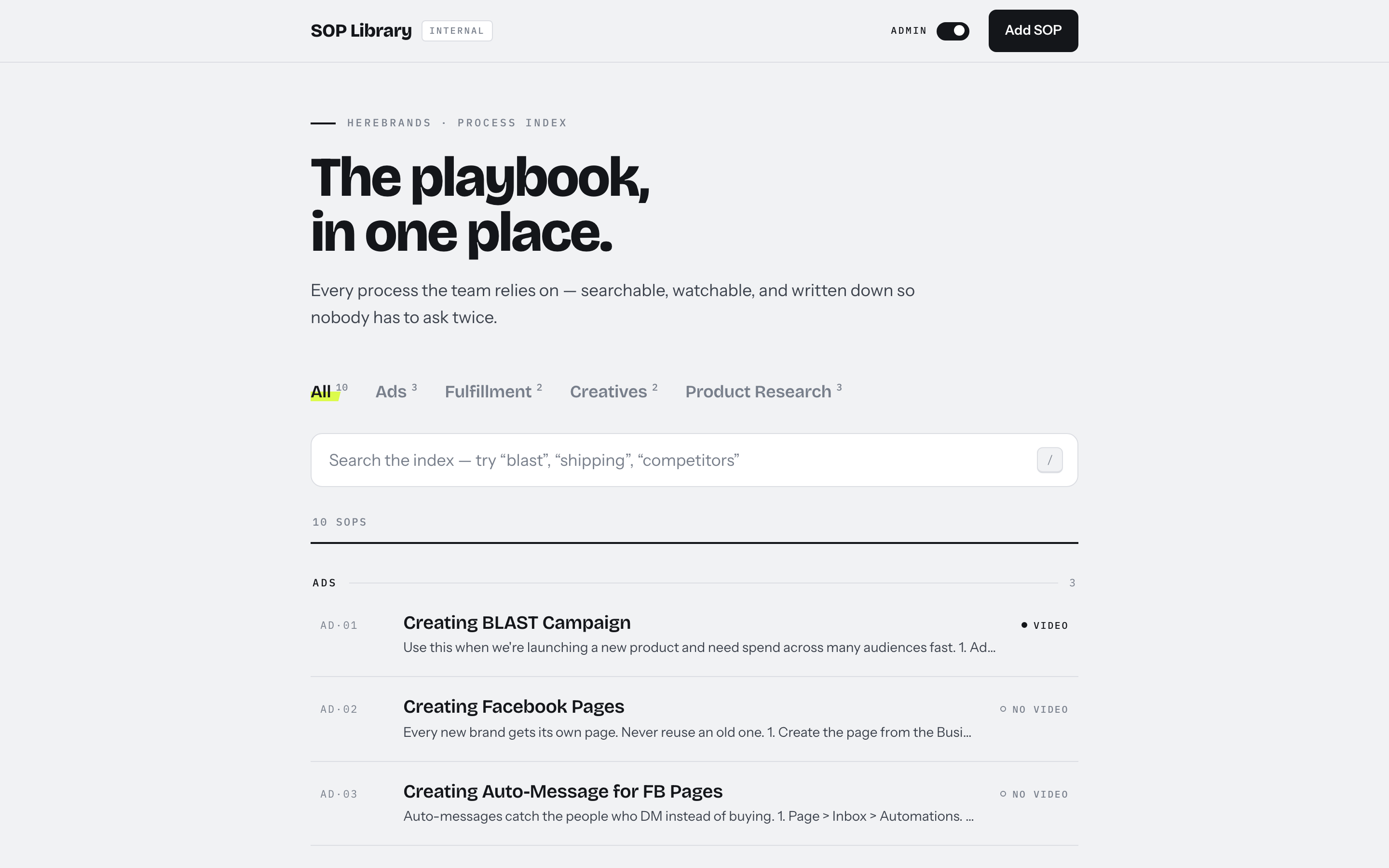
Editorial Index

The prototype you approved, elevated into a properly set document.

  • Topic bar with live counts and the signature chartreuse swipe on the active topic
  • Typographic index that groups under topic rules on “All”, with field-manual refs (AD·01…)
  • Detail reads like a magazine article — the nicest reading layout of the five
Open concept → most familiar
Search Command Center
02 Search-first · dense

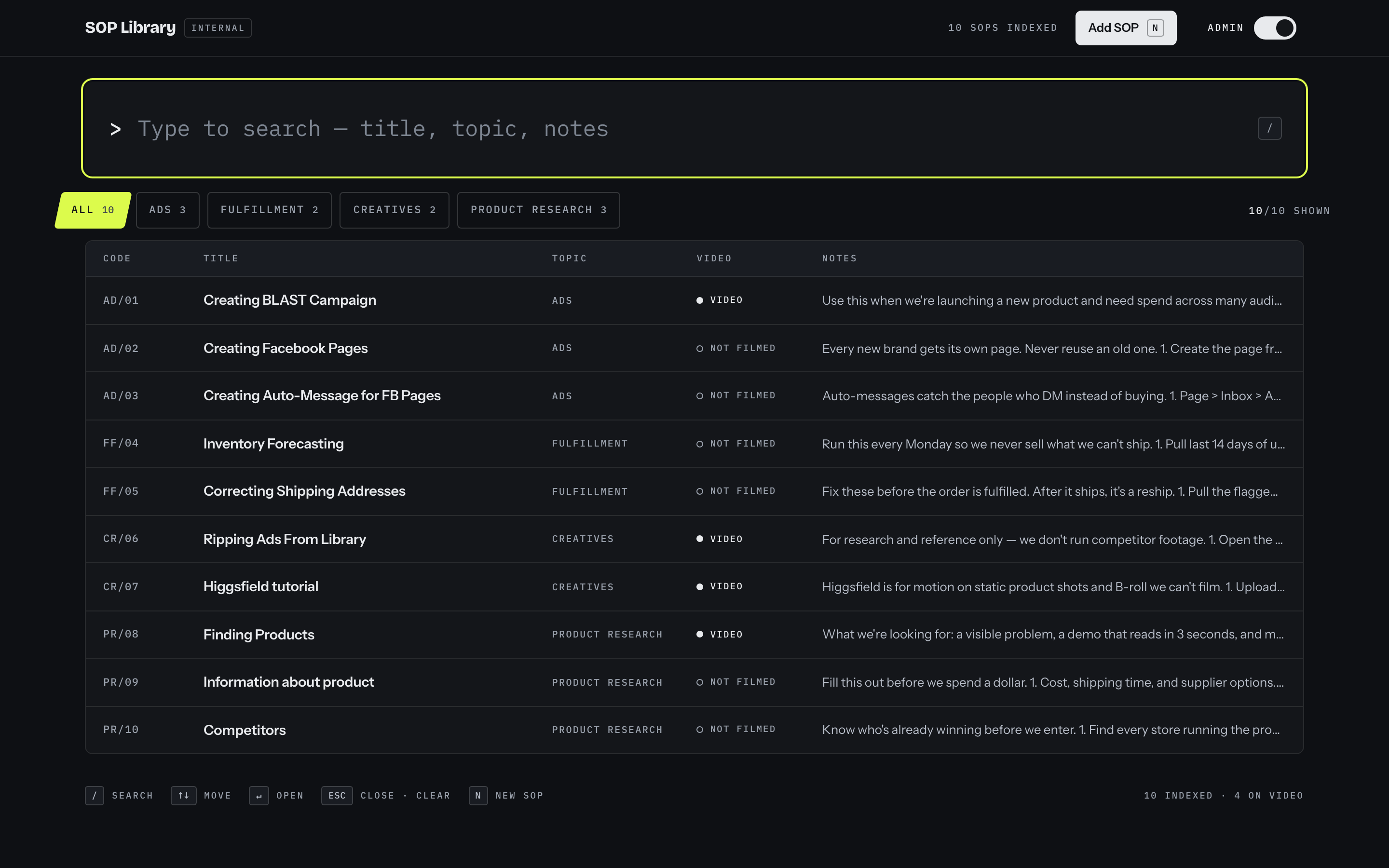
Search Command Center

A keyboard-driven console for people who already know what they want.

  • Always-on > search prompt; numbered, dense result rows
  • Topic chips with counts; live result readout; status bar with the key legend
  • / ↑↓ ↵ esc throughout; detail slides in over the list
Open concept → fastest to search
Visual Learning Library
03 Video-forward

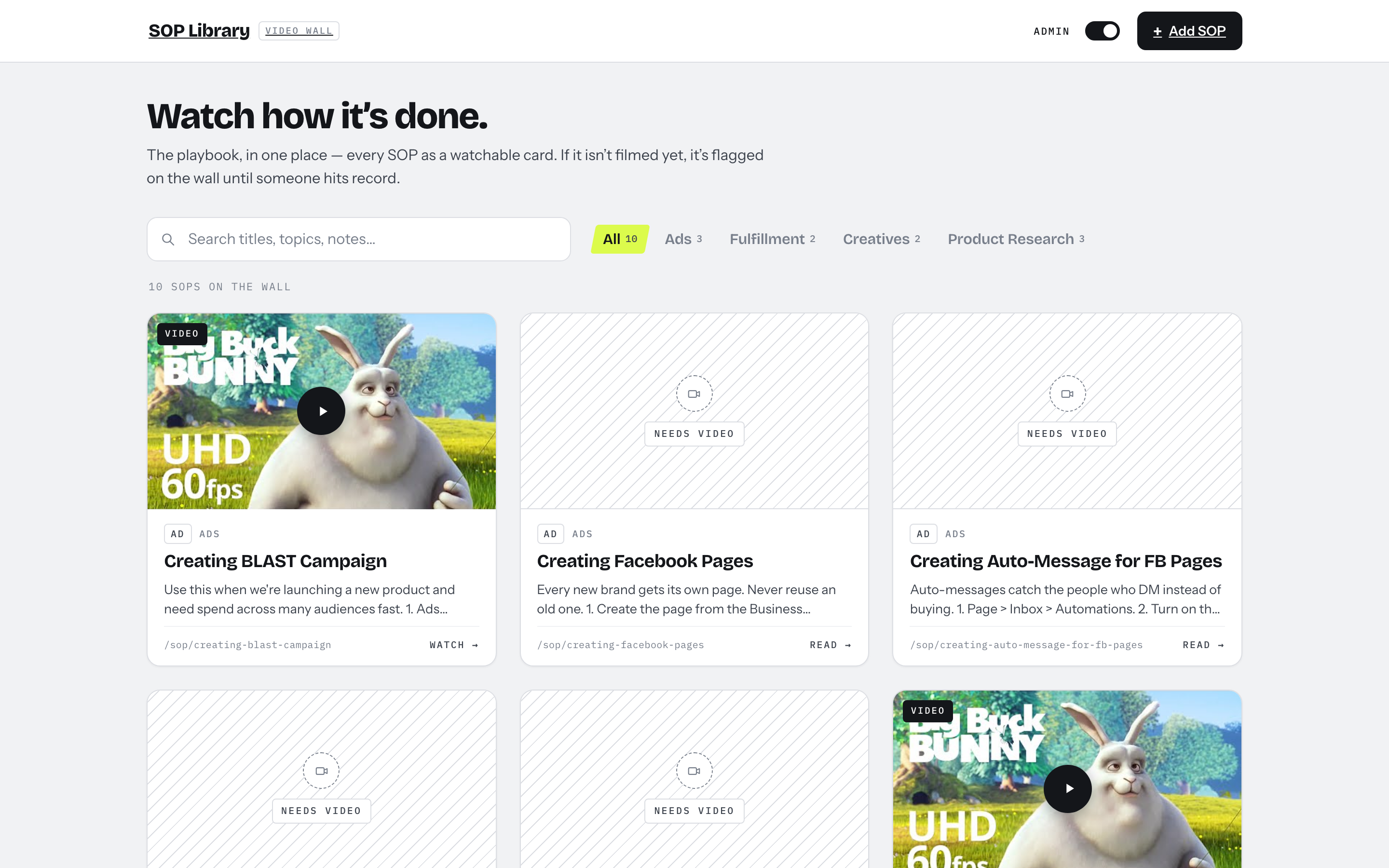
Visual Learning Library

Browse by thumbnail — and it turns the missing videos into a to-do list.

  • Filmed SOPs lead with the real YouTube thumbnail and a WATCH → action
  • Un-filmed SOPs get a designed “NEEDS VIDEO” tile — the filming backlog stays visible
  • Add/Edit shows a live thumbnail preview the moment a valid YouTube link is pasted
Open concept → best once filmed
Split-Pane Workspace
04 Master-detail

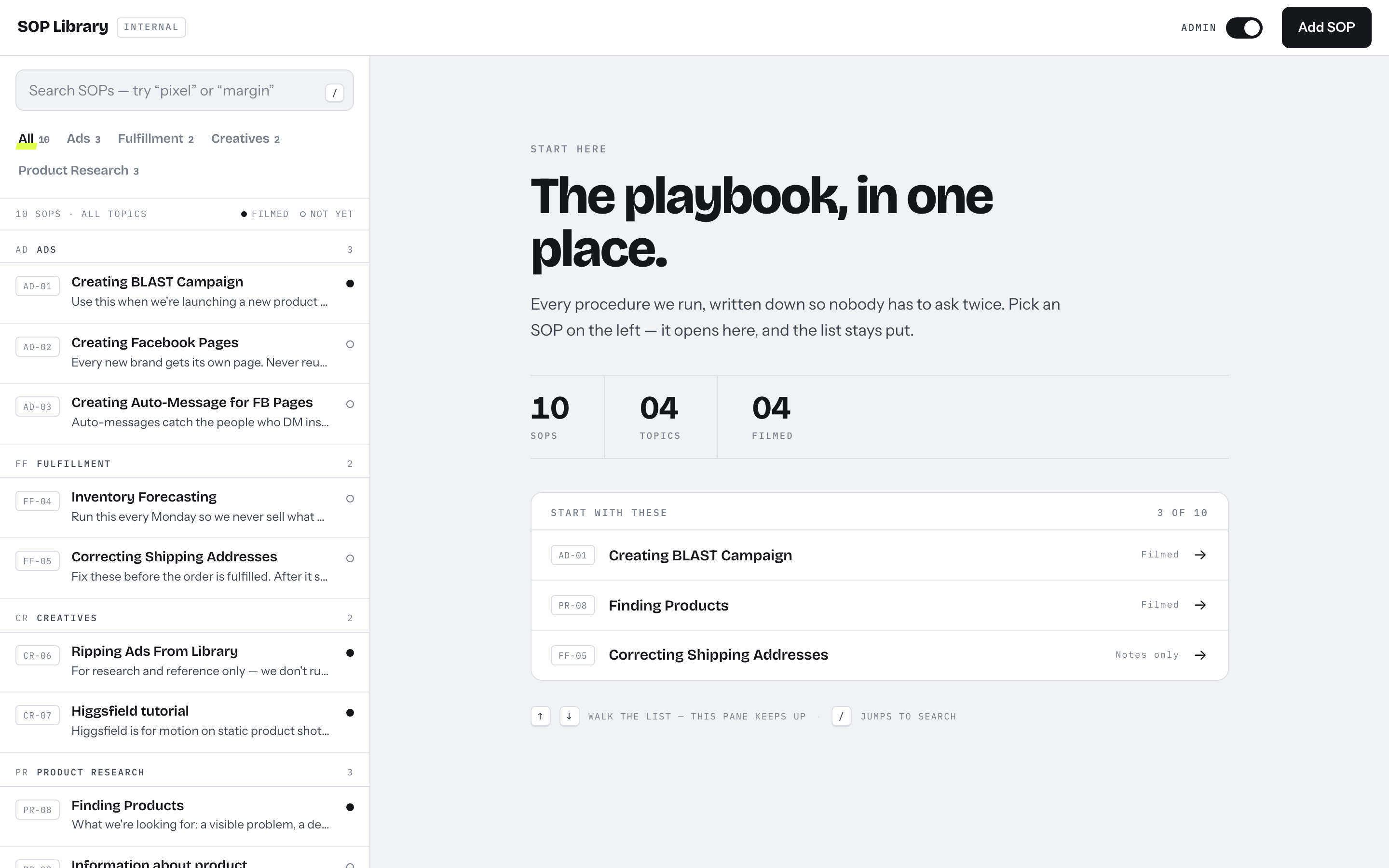
Split-Pane Workspace

List on the left, the SOP on the right — the list never leaves your side.

  • Click a row and the right pane fills in place; no page reload, URL still shareable
  • Opening screen is a real dashboard — counts, jump-to-topic, shortcuts
  • On a phone the panes collapse: list → tap → full-screen SOP → back
Open concept → best for daily use
Training Hub
05 Topic-led onboarding

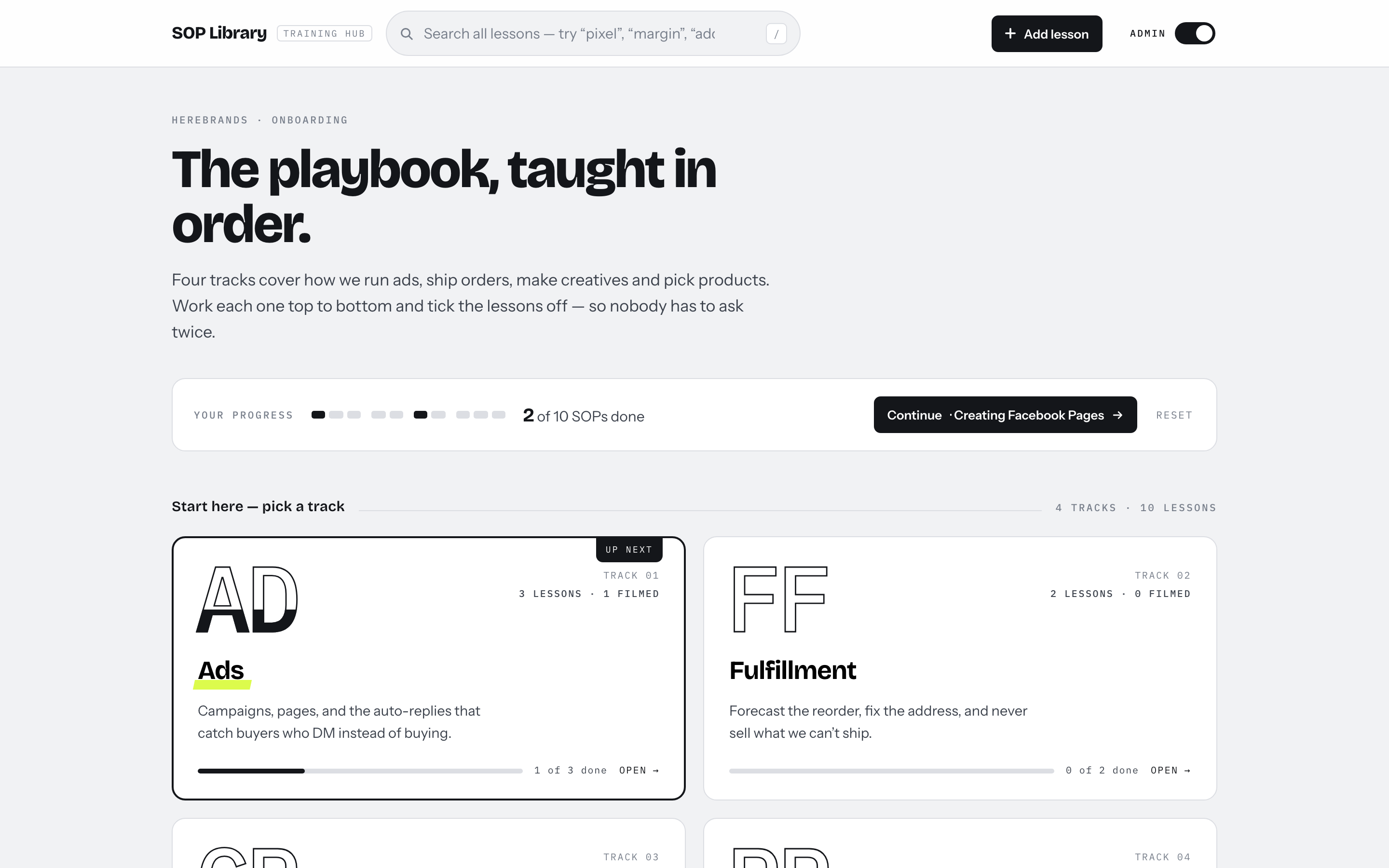
Training Hub

Four topic tracks a new hire works through — “nobody asks twice.”

  • Track cards with progress bars, an UP NEXT tag, and a Continue button to the next undone lesson
  • Ordered lessons with mark-as-done and Previous / Next through the track
  • Search still sits at the top for people who already know what they need
Open concept → best for onboarding